
Understand the taste artwork
A taste uses two visual compositions. Five separate ingredient cutouts are animated together with a base color splash above the product cup. A separate main image shows the complete ingredient arrangement with a rotating circle behind it. The cup and brand are selected in the product editor; you do not upload a cup when creating a taste.
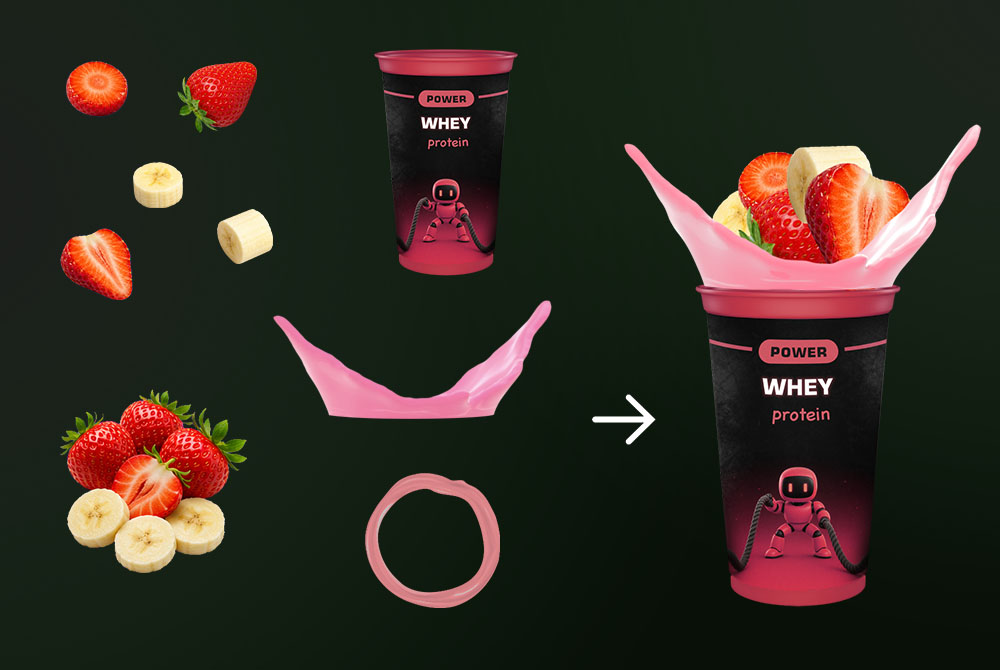
Prepare the PNG files
Prepare six PNG files with transparent backgrounds: five individual ingredient images and one main image. Keep each file at 5 MB or smaller.
| Image | Quantity | Exact canvas size |
|---|---|---|
| Individual ingredient cutout | 5 | 500 × 500 px each |
| Main image containing the complete ingredient arrangement | 1 | 350 × 350 px |
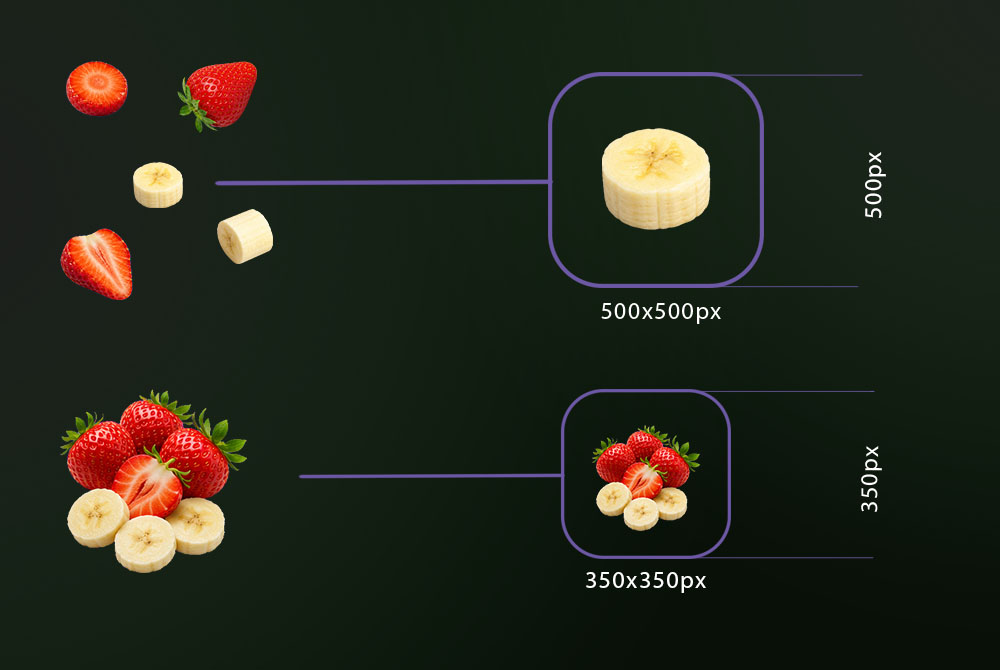
Use separate cutouts for the five ingredient images, such as the strawberry halves and banana slices shown above. For the main image, arrange the ingredients together into one balanced composition. Keep the artwork inside each canvas and export as PNG with transparency. Do not include the reference illustration's labels, borders, or background in your files.
The form rejects files with the wrong extension, image format, dimensions, or file size. Renaming a JPEG file to .png is not sufficient; export or convert it as a real PNG.
Build and preview the taste
- Open the Taste and brand catalog and find Add a custom taste.
- Enter a unique taste name of 2–80 characters.
- Select your 350 × 350 px main image.
- Choose an existing Circle image. The small taste preview shows the main image with that circle behind it.
- Choose an existing Base color splash that matches your ingredients. The selector shows its final animation frame.
- Select exactly five 500 × 500 px ingredient PNGs together in the ingredient file picker.
- Click Generate splash. Review the resulting 20-frame animation and the smaller main-image preview beneath it. If you change the name, base splash, or ingredients, generate the splash again.
- Click Create taste when the previews are ready.
The taste is available immediately in your catalog and product editor. Select it when configuring a product; creating the taste does not automatically change the products already assigned to a machine.
Manage your tastes
Your taste belongs to the client whose cabinet is open. Use Delete on your own taste card to remove it. If a product uses that taste or its main image, remove those references first. Shared tastes and tastes belonging to the root client are read-only in the cabinet.
To prepare the logo used with your products, follow How to create a brand.